Get started
Build pages with Elementor
Build Wix-powered pages in Elementor. Drag in Wix widgets, set them up in the panel, and restrict any element to members.
The plugin adds a Wix Headless category to Elementor with a widget for every Wix feature: products, services, booking form, cart, cart icon, member log-in and sign-up, account, gift cards, loyalty, CMS and more. You don’t need Elementor Pro.
Build a shop page
Open a page in Elementor
Go to Pages, create a page (or pick one) and click Edit with Elementor.

Find the Wix widgets
In the Elements panel, type Wix in the search box. Or scroll to the Wix Headless category.

Drag in Wix Products
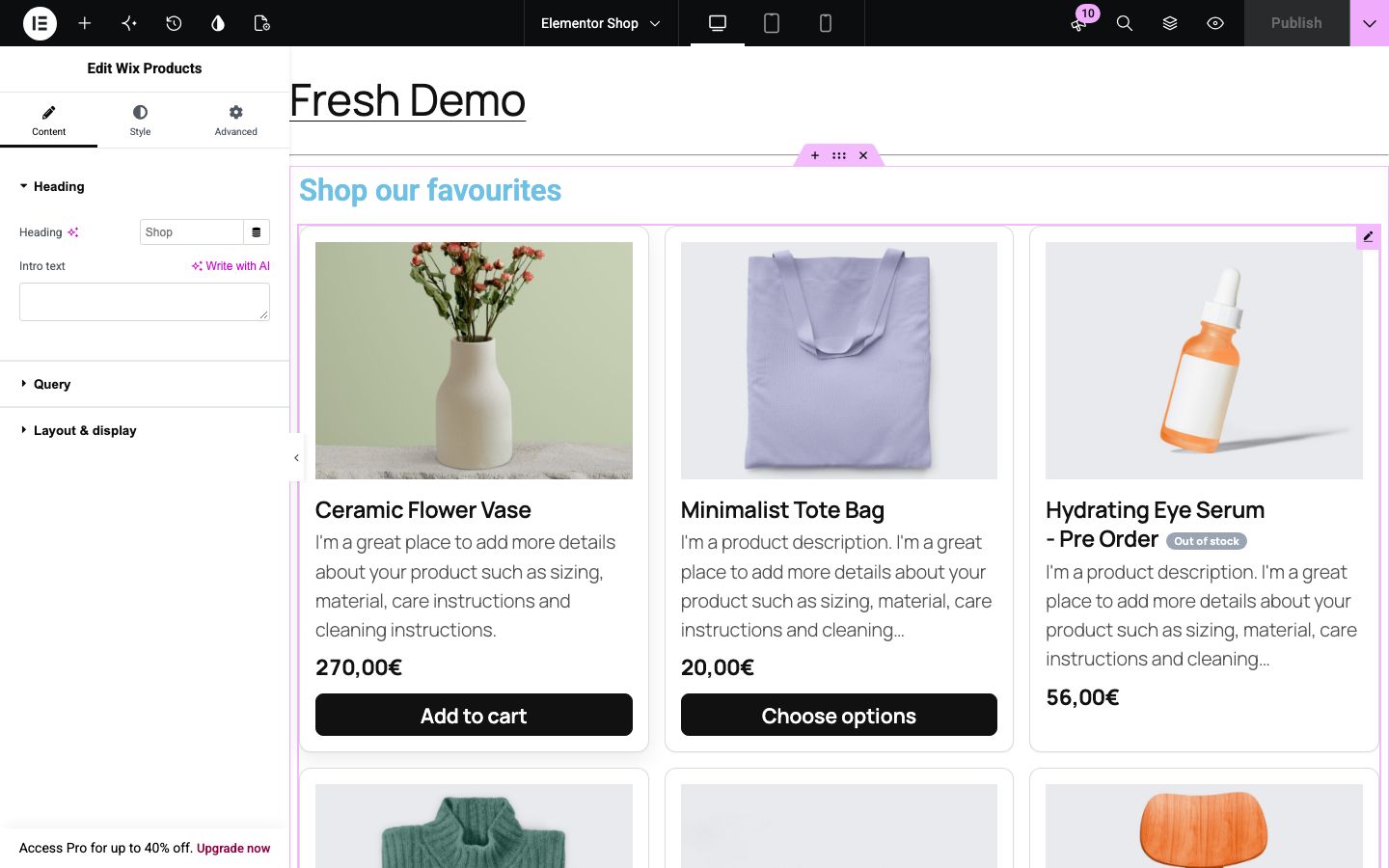
Drag Wix Products onto the page. It shows your real Wix products right in the editor, with prices, badges and buttons.
Set up the widget
The Content tab has the heading and intro text, Query (which products, and how many) and Layout & display. The Style tab sets colors, type and spacing, like any Elementor widget.
Publish and view the page
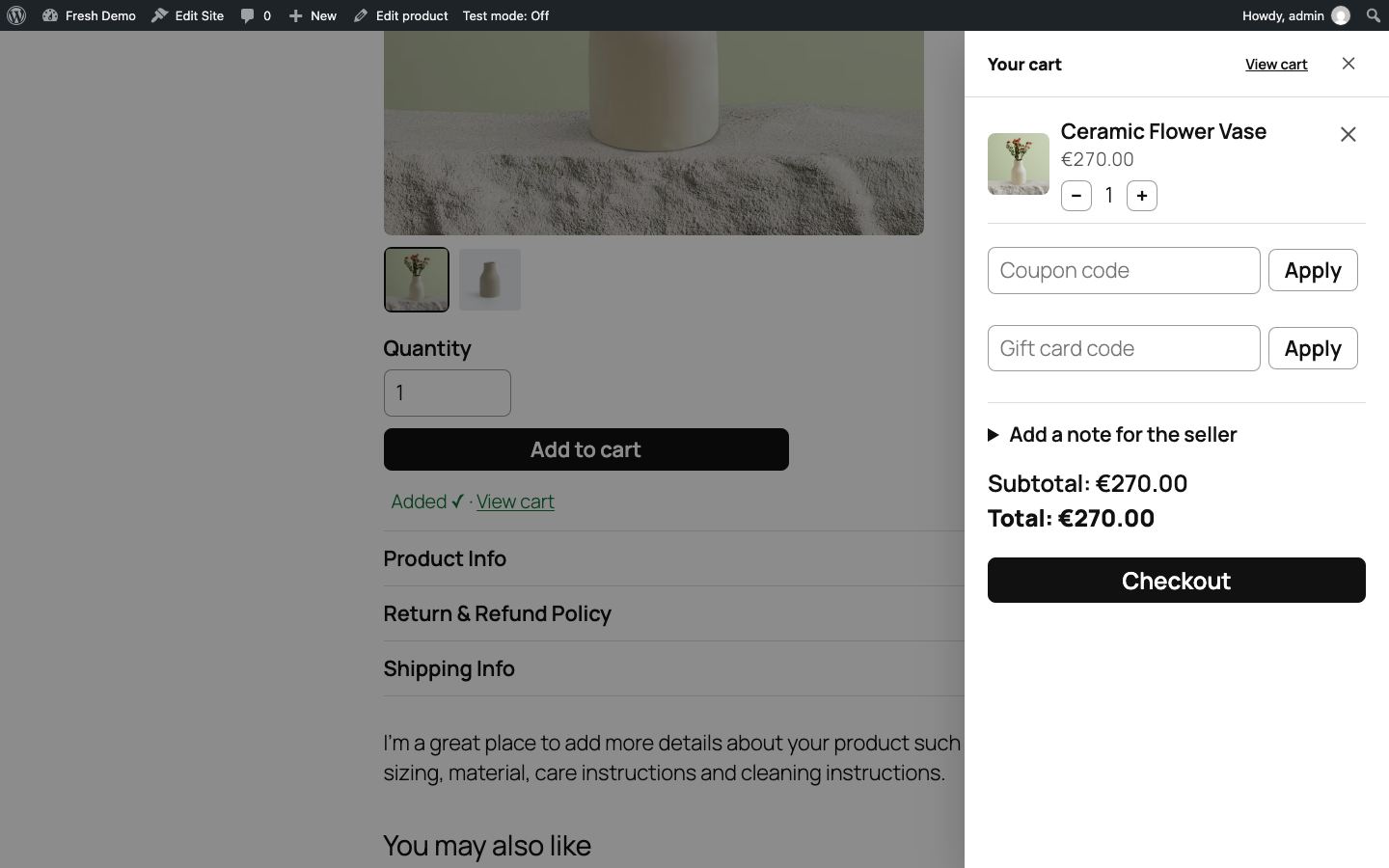
Click Publish and open the page. Add to cart, the cart drawer and checkout work exactly as on a block-editor page. See Sell products.

Add a cart icon to the header
Edit your header
With Elementor Pro’s Theme Builder, open the header template. Otherwise, add the widget to the top of the page.
Drag in Wix Cart Icon
Wix Cart Icon shows a cart with a live item count. Clicking it opens the slide-out cart.
Restrict an element to members
Select any element
This works on any widget, section or container, Wix or not.
Open Advanced → Wix member access
Switch Restrict on. Under Who can see it, pick any logged-in member, members with a plan or badge, or a WordPress role. Leave it empty for any logged-in visitor.

Choose what everyone else sees
Everyone else sees shows nothing or a message. Show to everyone else instead flips the rule, for example a “Sign up” banner that only logged-out visitors see.
Widgets you’ll use most
| Widget | What it does |
|---|---|
| Wix Products | Product grid with Add to cart |
| Wix Services / Wix Booking Form | Services with the date and time picker |
| Wix Cart / Wix Cart Icon | Full cart page / header icon with the drawer |
| Wix Member Login / Registration / Account | Sign-in, sign-up and the member hub |
| Wix Login Bar | “Log in”, or the member’s avatar menu |
| Wix Gift Card / Gift Card Balance | Sell a gift card / check a balance |
| Wix Loyalty / Loyalty Points | Rewards program / a member’s balance |
| Wix Plans, Wix Events, Wix CMS | Pricing plans, events, CMS collections |
| Wix Gated Content | A container only some visitors see |
If something goes wrong
A Wix widget says "Loading…" in the editor and never finishes
Save, reload the editor and check that the site is connected (Wix → Settings). If it still hangs, open the browser console and send us what it says.
I can't find the Wix Headless category
Make sure Headless Connect for Wix is active. Then search the Elements panel for "Wix", which also finds widgets in collapsed categories.
The editor shows a "Structure" panel or promos over my page
Those are Elementor's own panels. Close them with their ×. They don't appear on the published page.
How do I check a restricted element?
Open the published page in a private window (signed out), and again signed in as a member who should see it.