Run your business
Change settings and sync
The four Wix → Settings tabs, Manage Apps, and how WordPress keeps its copy of your Wix content fresh.
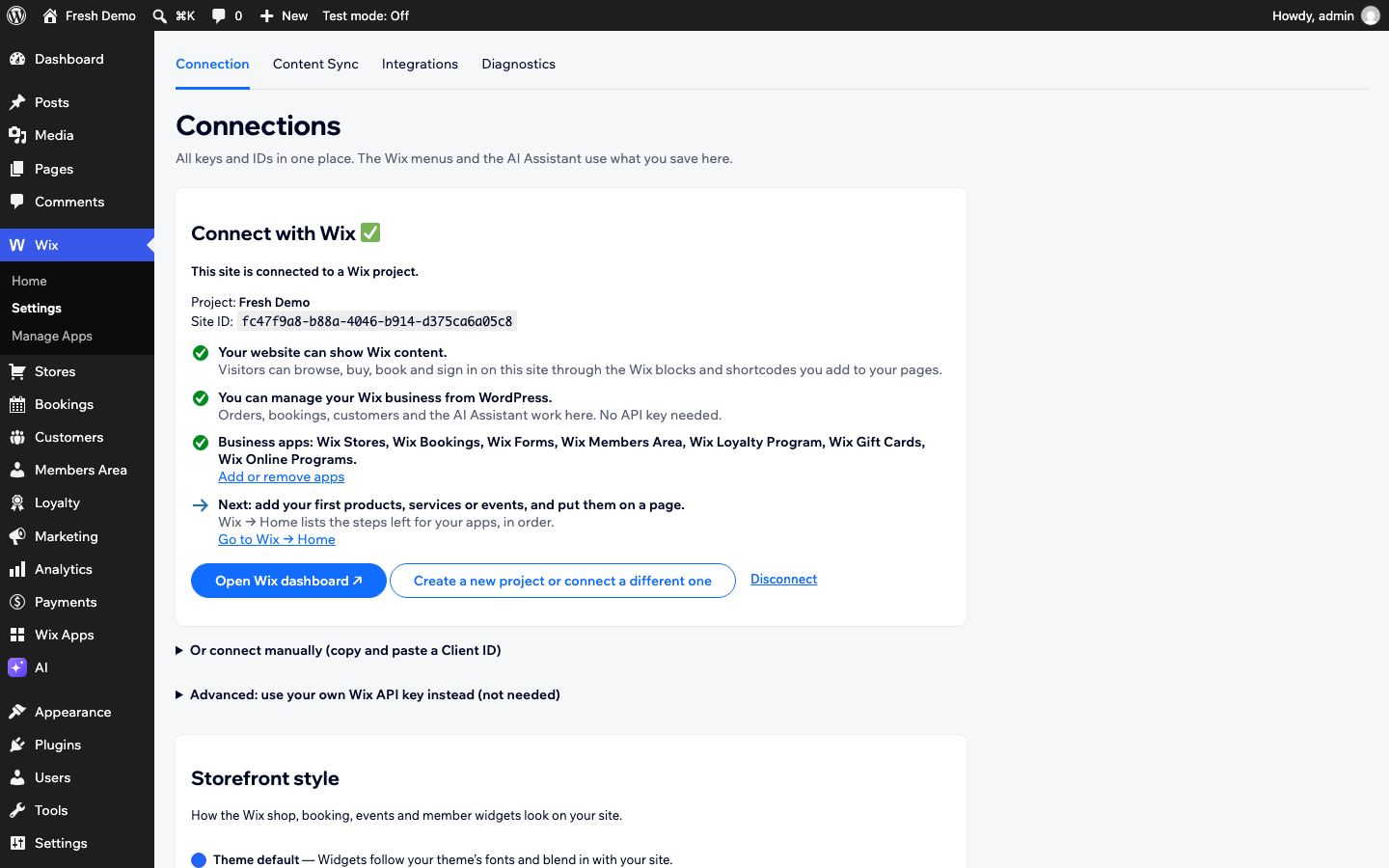
Connection
The connection card, the manual-connect and API-key options, the storefront style (follow your theme, or the Wix look) and the checkout test mode card.
Content Sync
Your products, services, events, plans and CMS collections are copied into WordPress as real posts, so SEO plugins, sitemaps, caching and themes work with them. Wix stays the source of truth.

- What’s mirrored counts the published pages per type.
- Sync health shows each type’s last successful sync, its target interval, and whether webhooks arrive. Sync now runs one immediately.
- Instant updates. Create a Custom App in the Wix app dashboard, subscribe it to the events listed here with the webhook URL shown, and paste its public key. The Deliveries table shows each event as it arrives.
The sync only reads
The automatic sync never changes anything in Wix. Only your own saves in WordPress write to Wix. Items deleted in Wix are moved to the WordPress Trash, and what you add in WordPress (SEO settings, layout) is kept.
Integrations
How the plugin works alongside WooCommerce, Elementor, the block editor, Yoast SEO, Rank Math, WPML and Polylang, and whether each one is active on your site.

Diagnostics
A health check: PHP and WordPress versions, uploads folder, the plugin’s AJAX endpoints, the AI self-test, and the saved Wix credentials. Start here when something doesn’t work.

Manage Apps
Every Wix business app with its status. Install adds an app to your Wix project, and Uninstall removes it. An app’s wp-admin menus appear only once Wix confirms it’s installed.

"Waiting for Wix"
Right after connecting or adding an app, Wix may not answer for a few minutes. The app shows Waiting for Wix and is checked again every minute. Nothing to do.
The Dashboard box
The WordPress Dashboard shows today’s bookings and a Wix Headless – Connect box with shortcuts to Wix Home, Connections and Diagnostics.
